USPS Shipping is a premium method that sources shipping rates from the USPS API and works with our free service WooCommerce Shipping, which creates discounted shipping labels right from your WooCommerce dashboard.
USPS can calculate domestic and international parcel rates. This extension uses these USPS rates.
The API and built-in box packer need your non-virtual products to have weights and dimensions set. More info at: Adding Shipping Dimensions to Products.
Requirements
↑ Back to top- Your store must use US Dollars as its currency
- Server must have SimpleXML installed. Check with your hosting company if you’re unsure
- Base country must be the United States, Puerto Rico or US Virgin Islands
The extension primarily works with measurements in Inches (in) and weight in Pounds (lbs), but other units can be converted automatically.
Installation
↑ Back to top- Download the extension from your WooCommerce dashboard.
- Go to Plugins > Add New > Upload and select the ZIP file you just downloaded.
- Install Now, and then Activate.
Your USPS User ID
↑ Back to topThe USPS Shipping Method extension requires a USPS Web Tools API account to provide live rates to shoppers. Please go to the USPS.com Web Tools Portal to register for a free account. You will receive a welcome email from USPS with your new USPS User ID (keep in mind that is not the same username used to sign in to USPS.com).
Next you will need to contact webtools@usps.gov to request API access and permissions. The welcome email from USPS asks that your message includes extra details like the USPS Mailer ID (MID), but feel free to skip requirements that you don’t have or don’t know what they are. All that’s needed is to inform the USPS support team that you want to use the Web Tools API with the WooCommerce extension. This extra step is required for now while we work on getting our extension to work with their new self-service platform.
Once your account has API access, back on your site you can then head to WooCommerce > Settings > Shipping > USPS to insert your USPS User ID and start using the live rates.
Note: if you don’t receive your email in 24 hours, please contact the USPS API support via this form.
Debug Mode
↑ Back to topGo to WooCommerce > Settings > Shipping > USPS to enable debug mode and show on your cart and checkout pages the request the site sent to USPS and the response it got back. This information is shown only to administrators who are logged in, and it can be useful to understand why rates are or aren’t returned.
Setup and Configuration
↑ Back to top- Go to WooCommerce > Settings > Shipping > Shipping zones.
2. Click the Edit button on the shipping zone where you want to offer this method.

3. Inside the shipping zone, click the Add shipping method button.

4. Then, select the shipping method and click the Continue button.
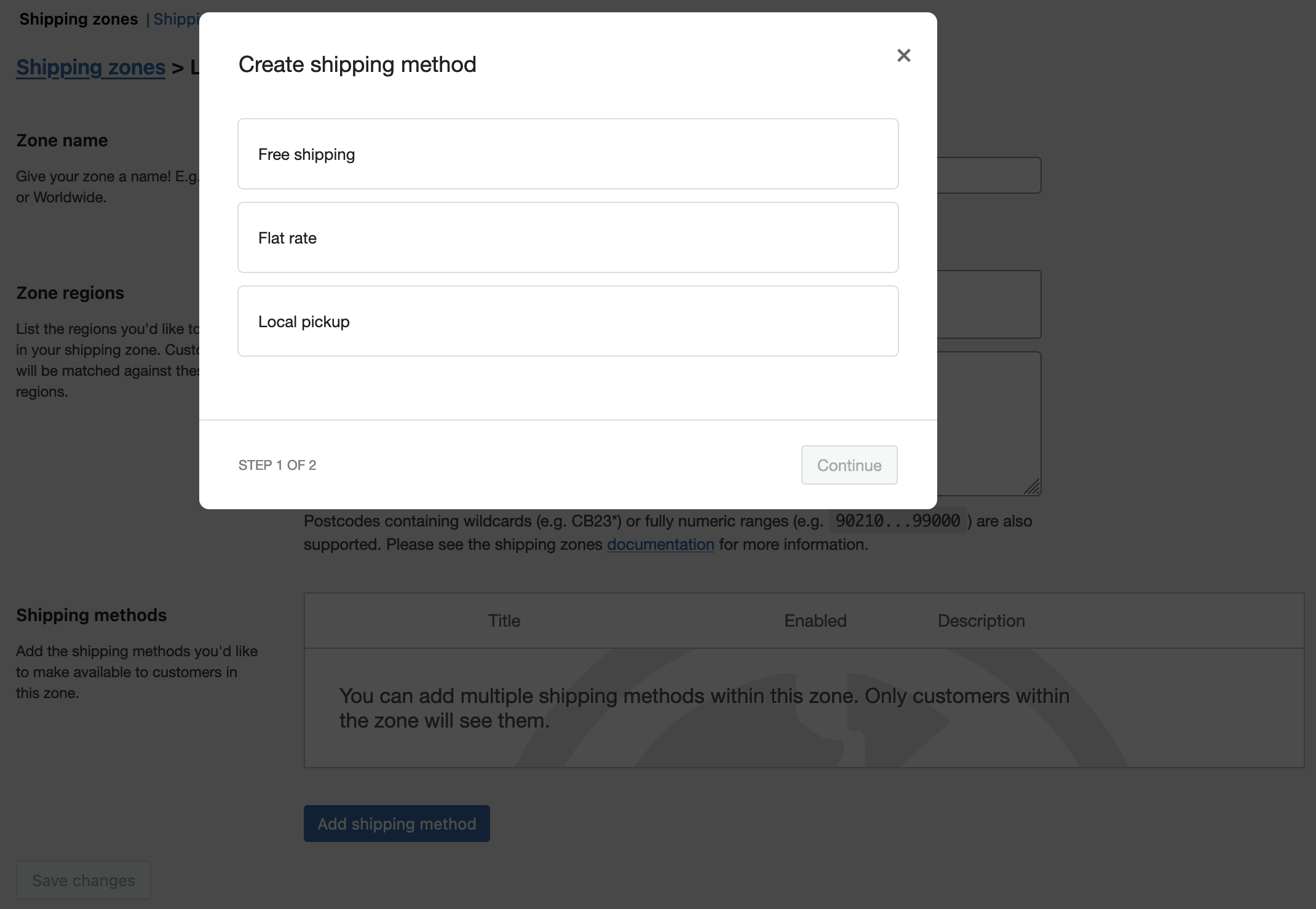
- Click the Edit button on the right side of the Shipping methods table to configure the settings:
- Method Title – Name the shipping method. This is visible to customers.
- Offer Rates – Choose whether to offer the customer only the cheapest rate or all returned rate options.
- Fallback – Enter a fallback shipping cost (optional), if no rates are returned from the API. This allows the customer to check out if USPS does not return matching rates. When using this option, do not use a dollar sign, just enter the amount (ex: 12.50).
- Flat Rates
- Flat Rate Boxes and Envelopes – Enable this option to offer shipping using USPS Flat Rate services. Items are packed into the boxes/envelopes, and the customer is offered a single rate.
- Express Flat Rate Title – Give a custom name to the express flat rate.
- Priority Flat Rate Title – Give a custom name to the priority flat rate.
- Additional Fee – Enter a fee per box excluding tax, such as an amount (2.50) or a percentage (5%). Or leave blank to disable.
- API Rates – Check to enable non-flat rates using the USPS API. Default is all services available; or choose what to offer from the available shipping services listed below. You can adjust:
- Enable API Rates – This enables non-flat rate services.
- Origin Postcode – 5-digit postcode from where you ship. It is sent to the USPS AP (Note: ZIP+4 format is not supported and, if used, will return a Please enter a valid ZIP Code for the sender error).
- Shipping Rates – Retail rates are standard costs, Commercial rates are discounted. If you want those rates to match those you get when printing labels with WooCommerce Shipping, set it to “Commercial rates”. Printing with WooCommerce Shipping automatically qualifies you for Commercial rates.
- Parcel Packing Method – See below for more detailed explanation.
Note: The USPS shipping extension is a calculator for all products in the cart and does not exclude products based on shipping classes. To exclude products from using the USPS shipping method, use WooCommerce Conditional Shipping and Payments extension.
Available Shipping Services
↑ Back to topThese services are included with the USPS Shipping extension:
Domestic
- First-Class Mail® Large Envelope
- First-Class Mail® Postcards
- First-Class Mail® Stamped Letter
- First-Class™ Postcard Stamped
- First-Class™ Large Postcards
- First-Class™ Keys and IDs
- First-Class Mail® Metered Letter
- Ground Advantage™
- Priority Mail Express™
- Priority Mail Express™ Sunday/Holiday
- Media Mail®
- Library Mail
- Priority Mail®
- Priority Mail® Keys and IDs
International
- Priority Mail Express International™
- Priority Mail International®
- Global Express Guaranteed® (GXG)
- Global Express Guaranteed® Document
- Global Express Guaranteed® Non-Document Rectangular
- Global Express Guaranteed® Non-Document Non-Rectangular
- USPS GXG™ Envelope
- First-Class Package International Service®
- First Class Mail® International Letters
- First Class Mail® International Large Envelope
- International Postcards
Flat Rate Shipping Options
- Priority Mail Flat Rate™ – Envelopes (Legal, Letter, Gift Card, Padded, Small, Window) and Boxes (Small, Medium 1 and 2, Large, APO/DPO/FPO Large, Large Board Game, Prepaid Forever® Packaging)
- Priority Mail Express Flat Rate™ – Envelopes (Envelope, Legal, Padded) and Boxes (Top-Loading, Side-Loading)
- Priority Mail International Flat Rate® – Envelopes (Legal, Letter, Gift Card, Padded, Small, Window) and Boxes (Small, Medium 1 and 2, Large, APO/DPO/FPO Large, Large Board Game)
To enable any of these options:
Select the Standard Services option to ‘Retrieve Standard Service rates from the USPS API’.
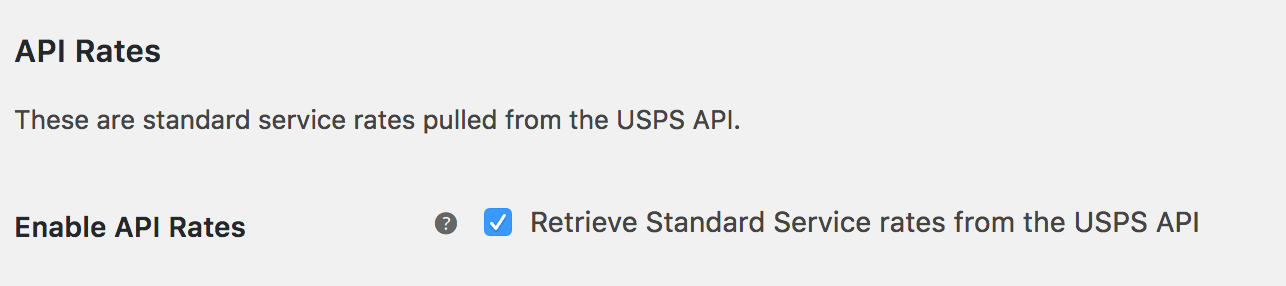
You also have the option to rename the service and include a negative/positive price adjustment by the default currency or a percentage.
- Price adjustments ($) – Add a flat adjustment to the USPS service.
- Price adjustments (%) – Add a percentage adjustment to the USPS service.
Flat Rate Services
↑ Back to topIf enabled, the flat rate box option creates a single quote based on USPS Flat Rate Services. To do this, the system uses the box packer (explained below) applying USPS box dimensions. Packed boxes are then combined to offer a single rate (named by your ‘method title’).
Flat Rate Shipping prices come directly from USPS, and you cannot add or modify pricing for this option.
In the case of both Flat Rates and API Rates are used, USPS will return both but will reject one in favor of the other if it is cheaper for the same service.
Parcel Packing Method
↑ Back to topThere are three packing methods with USPS, and each affects the parcels you send to the API.
Per-Item
↑ Back to topEach item in your cart (non-virtual) is sent to the USPS API. Quotes for all items are combined to calculate the final cost.
Pack into boxes
↑ Back to topItems are packed into pre-defined boxes and sent to the API. We recommend this option. See Box Packing below for more information.
Unpacked item handling – It’s possible that some items will stay unpacked because the available box(es) won’t fit them. It’s also possible that the item’s size or shape isn’t standard, preventing it from being combined with other items.
- Get a quote for the unpacked item by itself: This method gets the shipping cost for each unpacked item separately.
- Ignore the item – do not quote: The unpacked item is ignored in this option. However, you will receive quotes for the packed items.
- Use the Fallback Price: This option uses the Fallback price specified in the Rate Option Settings as a fallback.
- Abort – do not return any quotes for the standard services: This option does not give any quotes. You won’t even receive the quotations that are returned based on the customized Box Dimension.
Weight based
↑ Back to topRegular sized items (< 12 inches) are grouped and quoted for weights only. Large items ( > 12 inches) are quoted individually.
Box Packing
↑ Back to topThe box packer included with this shipping method lets you group items into packages for which you define height, width, length, weight and max-weight. You have two box packing modes to choose from in WooCommerce > Settings > Shipping > USPS: the Legacy packer (the default option) which is volume based, and the Enhanced packer that considers volume and item size.
The Enhanced packer should provide better results in most cases, but either option isn’t as accurate as a real person packing a box (see BIN Packing Problem). Therefore, it is important to understand that packing results are as accurate as possible, and any anomalies should be acceptable.
Setting up box sizes
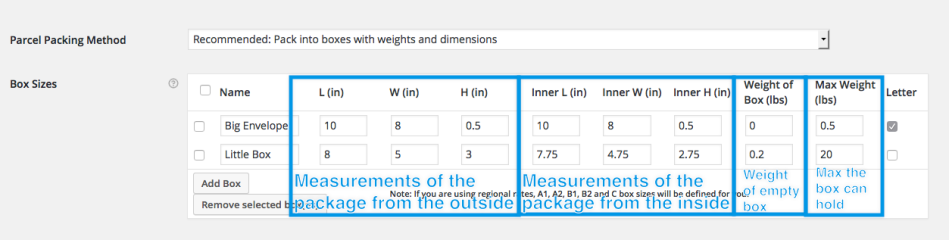
↑ Back to topWhen using the ‘Recommended: Pack into boxes with weights and dimensions’ Parcel Packing Method, the Box Sizes table will appear. Click ‘Add Box’ to set up dimensions for your packages.
Name: This allows you to name your custom packages. This name will show in the Debug if that package is used.
L (in), W (in), H (in): The first set of dimensions are the outer dimensions of the package. These are the dimensions passed to the API. If you are working with a flat rate box via the API, use the API’s ‘inner dimensions’ for your box’s outer dimensions. Your box must ‘fit’ inside.
Inner L (in), Inner W (in), Inner H (in): The second set of dimensions are for the inner dimensions of the packaging. This should be the outer dimensions minus the thickness of the package walls. These dimensions are used for packing and items must fit within them (they cannot be the same size as the products, allow for a little extra room). Inner dimensions must be smaller than the first set of dimensions (outer dimensions).
Weight of Box (lbs): This is the weight of the empty box by itself. This weight is added to the total weight of the contents.
Max Weight (lbs): This is the maximum weight your box can hold. This includes the weight of the box and the contents. (Note: This value should never be set to 0 , as that will result in that box not being used due to the Max Weight limitation being met before any items are packed inside.)
Letter: This checkbox determines whether your package is a letter (envelope) or a box.
How the calculation works
↑ Back to topThe box packer:
- Finds boxes that fit items being packed (uses H x W x D).
- Packs all items into boxes (using volume).
- Uses the smallest box fitting 100% of items *or* uses the highest % packed box, and then passes unpacked items back (and repeats the process)
- Packs unpackable items alone, using item dimensions.
- Returns all packed boxes.
Media Mail®
↑ Back to topTo enable Media Mail®, you must select the ‘Retrieve Standard Service rates from the USPS API’ option. You then have two options: a) You can do nothing, which allows any item to use Media Mail®; or b) if only some of your products are eligible for Media Mail®, you need to give each product a shipping class and restrict Media Mail® to use only that class or classes.
After setting up shipping classes, you can restrict settings in your Shipping Zone USPS rate:

Customer Usage
↑ Back to topCustomers can get quotes based on the address entered from two places:
- Cart page – by using the shipping calculator
- Checkout page – by filling in shipping and billing forms
Troubleshooting
↑ Back to topNo rates returned/no rates available
↑ Back to top- Enable debug mode to see debugging info on the cart page. This often reveals the issue. To enable, go to WooCommerce > Settings > Shipping > USPS.
- Check that products have sizes and weights set – without this, the calculation cannot be performed.
- Go to: WooCommerce > Settings > General and check that your store’s base country is the United States and US Dollars is the currency.
- Check that the plugin is linked to USPS API. It uses wp_remote_post, which makes use of fsockopen/CURL.
- If API rate are enabled, make sure origin postcode is included.
If you need help with adding weights/dimensions, see:
Adding Shipping Dimensions to Products
Stamped Letter service not available
↑ Back to topIf packing items individually, please note the minimum size requirements for the contents of a letter envelope:

If the contents of the envelope(the product in the cart) are not within the minimum and maximum dimensions shown above, the Stamped Letter service will not be shown as available.
“UserName exceeds maximum length of 12 characters” error message
↑ Back to topIf you receive this error message when the debug mode is enabled, you need to use a shorter username.
Customize
↑ Back to topCustomizations are not covered under our support policy, so this isn’t something we can help implement or troubleshoot on your site.
Filter Flat Rate Services
↑ Back to topTo change the USPS package to envelope so dimensions are fixed, add this to your theme’s functions.php file:
To remove all the USPS Priority Flat Rate envelopes, leaving only the Small, Medium, and Large Flat Rate boxes, add this to your theme’s functions.php file:
The codes for each flat rate box can be found below:
Priority Mail Express
Priority Mail Express Flat Rate Envelope: d13
Priority Mail Express Legal Flat Rate Envelope: d30
Priority Mail Express Padded Flat Rate Envelope: d63
Priority Mail
Priority Mail Flat Rate Envelope: d16
Priority Mail Flat Rate Medium Box (Side Loading): d17
Priority Mail Flat Rate Medium Box (Top Loading): d17b
Priority Mail Flat Rate Large Box: d22
Priority Mail Flat Rate Large Box (Board Game): d22a
Priority Mail Flat Rate Small Box: d28
Priority Mail Padded Flat Rate Envelope: d29
Priority Mail Gift Card Flat Rate Envelope: d38
Priority Mail Window Flat Rate Envelope: d40
Priority Mail Small Flat Rate Envelope: d42
Priority Mail Legal Flat Rate Envelope: d44
International Priority Mail Express
Priority Mail Express Flat Rate Envelope: i13
Priority Mail Express Legal Flat Rate Envelope: i30
Priority Mail Express Padded Flat Rate Envelope: i63
International Priority Mail
Priority Mail Flat Rate Envelope: i8
Priority Mail Padded Flat Rate Envelope: i29
Priority Mail Flat Rate Small Box: i16
Priority Mail Flat Rate Medium Box (Side Loading): i9
Priority Mail Flat Rate Medium Box (Top Loading): i9b
Priority Mail Flat Rate Large Box (Top Loading): i11
Exclude a country from USPS rates
↑ Back to topIf you wish to exclude a country from receiving USPS rates, the easiest way is to use Shipping Zones (WooCommerce 2.6+). However if you wish, you can use the snippet below. Change US to the country code you’d like to exclude:
FAQ
↑ Back to topDo Shipping Zones work with USPS Shipping?
↑ Back to topYes!
How can I get First Class Mail® International Large Envelope rates to display?
↑ Back to topYou need to use the Recommended parcel packing method and ensure that the Letter checkbox is ticked:
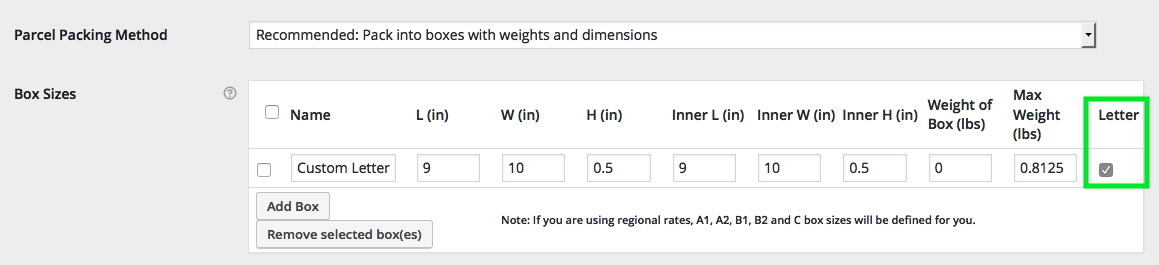
Additionally, per USPS, these services are not offered because they can’t be used for shipping merchandise. However, there is a way to override this setting in the extension with the following snippet:
Questions and Feedback
↑ Back to topHave a question before you buy? Please fill out this pre-sales form.
Already purchased and need some assistance? Get in touch with a Happiness Engineer via the Help Desk.